Motion design
How to prepare a logo for animation without redrawing it
Decide what moves, separate the right vector layers, and hand a motion designer a logo that lands exactly on the approved mark.
The short answer
A vector logo isn’t automatically ready to animate. Start with the approved final frame, then make a separate working file with one named layer for each part that has to move independently.
Decide what moves before you split anything
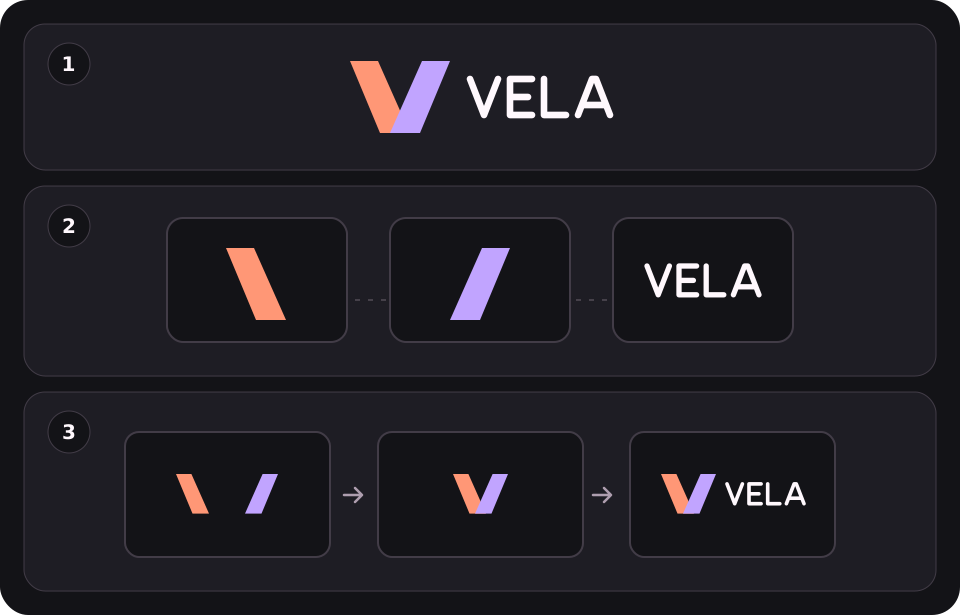
Draw three frames at the actual delivery aspect ratio: start, reveal, hold. Let the form suggest the motion. In this example two angled pieces meet first and the wordmark appears last. A single-piece emblem may only need a mask. If a letter’s counter is already a hole in a compound path, keep it with the letter unless the motion specifically needs a separate matte. Don’t turn every path into a separate layer.
Build a motion copy, not a new master
Duplicate the approved source and keep it unchanged. In the motion copy, put each moving unit on its own top-level Illustrator layer: for example VELA_Symbol_Left, VELA_Symbol_Right and VELA_Wordmark. Leave letterforms grouped if they move as one. Keep the artwork in its final position in the file; the exploded view here is an explanation, not the source layout. For screen work start from the agreed RGB colors and include a static reference of the final lockup.
Import as a composition and compare the result
Save the layered AI copy with PDF compatibility. In After Effects, import as Composition – Retain Layer Sizes if you want the individual layers sized to their artwork, or use Composition with document-sized layers for the workflow in Adobe’s Edit Original guidance. For position, scale and rotation you don’t have to convert every layer to shapes. Convert a duplicate of a layer only if you need to animate a path or use a shape operation, then check strokes, clipping and any effects against the reference.
Further reading: Adobe After Effects Help · Adobe Learn
Check the hold frame and specify what to deliver
Overlay the final frame on the approved still at full size. Check the proportions, wordmark spacing and color; then preview on the darkest and lightest backgrounds agreed for the job. Supply the layered source, reference still, and a note with placement, aspect ratio, background and required outputs. Keep a static variant for placements that can’t use animation. Deliver an alpha export only when the destination supports it; don’t assume an MP4 carries transparency.
PUT IT INTO PRACTICE
Ready to prepare your pack?
logopack.app turns existing SVG artwork into an organized logo package. Preview your files, choose the available export options and check the result before handing it over. Exporting your own logo or icon files requires Pro.
Start with the logo pack generator, explore the sample ZIP, or compare the current plans.
Open generator