Logo design craft
How to balance a logo symbol and wordmark
A practical comparison exercise for constructing one horizontal lockup, without treating geometric alignment or fixed ratios as a design solution.
The short answer
A symbol and a name can be precisely aligned yet still feel unrelated. Build their relationship by comparing visible shape, relative emphasis, spacing and placement, then test the result where people will actually see it.
Start with a stable wordmark
This guide constructs one horizontal lockup: a fixed arrangement of symbol and wordmark. It does not choose between already approved horizontal, stacked and symbol-only versions. That comes later, in responsive logo systems.
The illustrations use FORM, a fictional study made from original vector shapes. It is a teaching example, not client work or a reference to an existing brand identity. Every alternative is a candidate to evaluate, not a universal correct answer.
Choose the letterforms, weight and approximate letter spacing before comparing symbol sizes. Otherwise, a typography change can make yesterday’s balanced symbol look too dominant or too weak. Adobe’s typographic logo tutorial combines font selection with spacing and alignment refinement.
Keep an editable original. If text-object bounds include extra font space, use a duplicate converted to outlines to inspect the actual letter shapes. Do not mistake the text frame, artboard or selection box for the visible artwork.
Set a hierarchy for the exercise: should the name lead, should the symbol lead, or should they attract comparable attention? Balance can support deliberate emphasis; it does not require equal prominence.
Further reading: typographic logo tutorial
Compare visible bounds and visual mass
Visible bounds describe the outermost edges you can see. Visual mass describes how substantial or attention-grabbing an element feels in this composition. A dense symbol and an open symbol can fit identical outer boxes while making different impressions beside the same name.
Look at filled regions, internal openings, stroke weight and where the shape concentrates. A small projecting tip may determine the bounding box without representing most of the symbol. Likewise, a wordmark’s letter height does not tell you how light or heavy its strokes appear.
Do not solve this by equalizing black area. Equal filled area cannot guarantee balance between different shapes, letters and contexts.
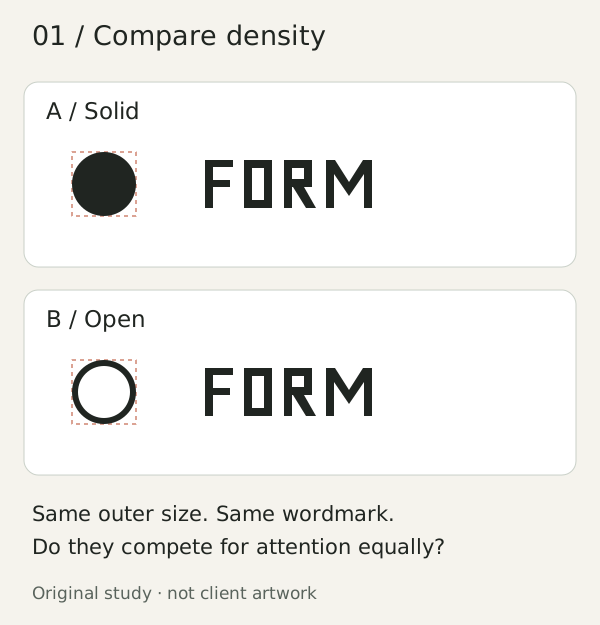
Make three size candidates
Duplicate the lockup into three rows. Keep the wordmark unchanged and make the symbol smaller, intermediate and larger. These are comparison points, not prescribed percentages.
Scale the symbol proportionally. Keep its vertical reference and the visible edge-to-edge gap constant so that this pass tests size rather than several changes together.
Ask which candidate supports the intended hierarchy. Does the symbol overpower the name? Does it become a decorative speck? Does either element seem borrowed from another identity? Pick a working candidate, not a final winner. Adobe’s logo composition guidance likewise asks designers to review relative weight, hierarchy and proportion.
Further reading: logo composition guidance
Use alignment tools as a starting point
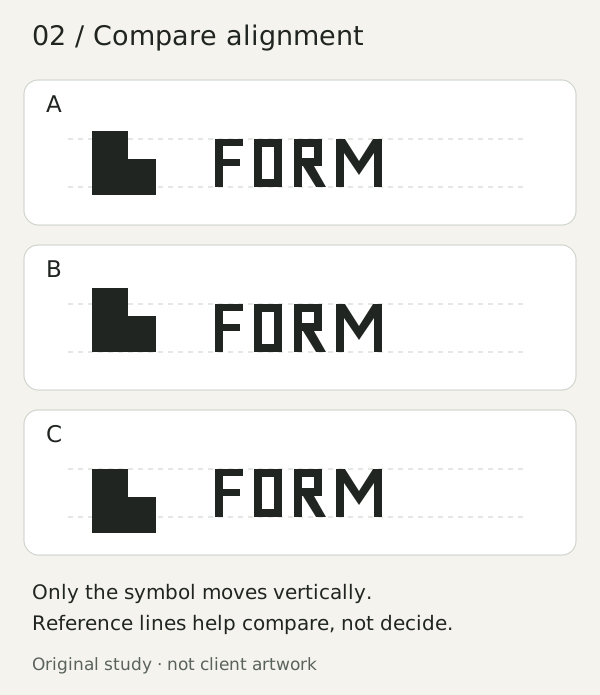
For the uppercase FORM study, mark the cap-height region from the baseline to the top of the flat capital letters. Center the symbol’s visible bounds within that region to create candidate A. This gives you a repeatable mechanical reference.
Then duplicate it. Move only the symbol slightly up for candidate B and slightly down for candidate C. Keep its size and horizontal gap unchanged. Hide the guides before judging whether the pair appears to sit comfortably together.
An asymmetric shape may appear top-heavy or bottom-heavy despite matching its box center. Optical alignment is a visual judgment, not a mathematically computed optical center. For lowercase or mixed-case names, inspect the main letter bodies as well as ascenders and descenders instead of copying FORM’s reference uncritically.
Separate the internal gap from external clear space
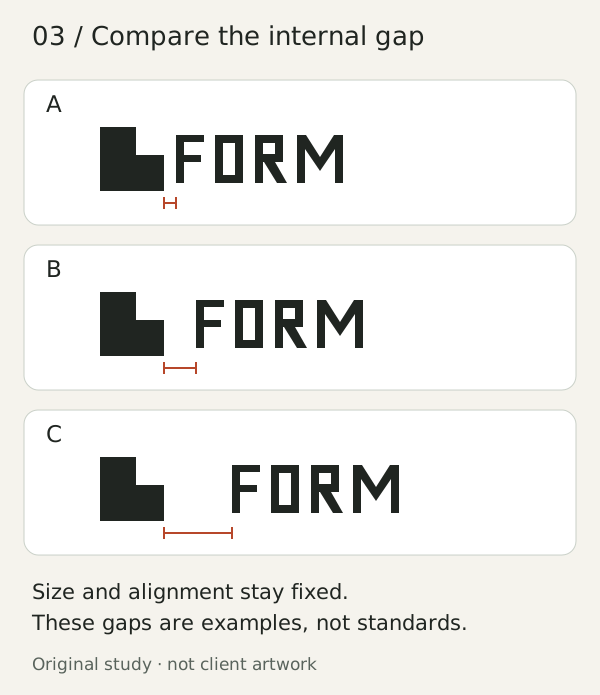
The internal gap is the space between the symbol and wordmark inside the lockup. External clear space is the protected area around the complete lockup, separating it from other content. Changing one does not establish a rule for the other.
Create three gap candidates with size and alignment frozen. Measure between visible edges, not text frames. In an irregular shape, also inspect the larger pocket of space around the nearest point: a single tip can make the numerical gap misleading.
Look for a relationship that reads as one signature without making the first letter feel crowded. A wider gap may weaken that grouping; a tighter one may create an unintended combined shape. Judge the actual contours, including the first letter, rather than applying one spacing value to every logo.
Retest at actual sizes and on both backgrounds
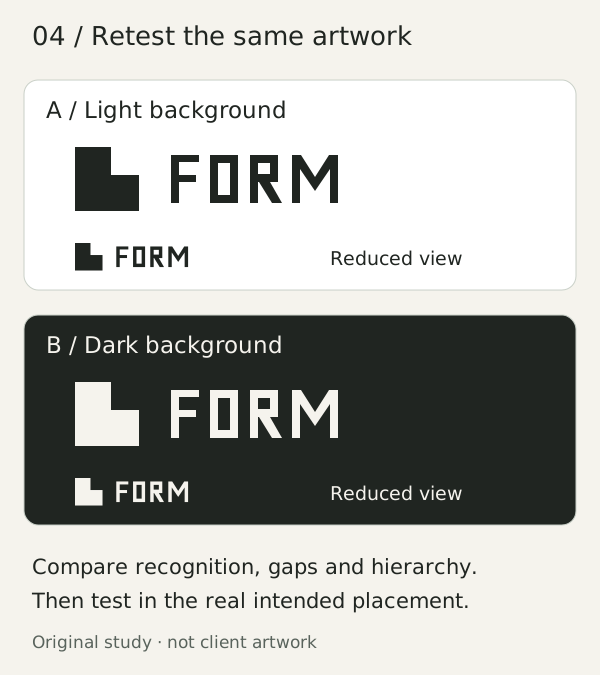
A large artboard makes small differences easy to inspect, but it can hide the conditions that matter. Place each shortlisted candidate in a realistic header or label, beside representative surrounding content.
For screen use, inspect the exported result at its intended displayed size. For print, make an actual-size proof. Keep a larger view for inspecting details, not as the only approval view.
Check whether openings remain distinct, the name stays readable and the intended hierarchy survives. Light-on-dark artwork deserves its own review. If a different reversed drawing is needed, develop and approve it separately rather than silently altering the master. See one-color and reversed logo variants.
Run a controlled review
Use the sequence size → alignment → gap → context. During each pass, change one variable only. Then compare the complete shortlisted lockups again, because the decisions interact.
Ask another designer to describe what they notice before revealing your preferred candidate:
If feedback conflicts, return to the intended hierarchy and applications rather than averaging everyone’s suggestions. Record the reason for the next adjustment so the exercise remains testable.
- Which element attracts attention first?
- Do the symbol and name read as one signature?
- Does the placement feel stable without the guides?
- What becomes crowded, weak or unreadable in the smallest intended application?
Document the approved relationship
Once reviewed and approved, preserve the lockup as a grouped master. Record the symbol size, its vertical offset and internal gap using a clearly defined unit from this drawing. These measurements reproduce a design decision; they do not explain why every logo should use it.
Document external clear space separately, along with tested applications, background variants and any minimum-size limits established by those tests. Keep the rejected candidates in the working file, but distinguish them from approved delivery assets. Packaging files comes after the relationship is resolved, not instead of resolving it.
PUT IT INTO PRACTICE
Ready to prepare your pack?
logopack.app turns existing SVG artwork into an organized logo package. Preview your files, choose the available export options and check the result before handing it over.
Start with the logo pack generator, explore the sample ZIP, or compare the current plans.
Open generator